Download PsExec — Remote Command Execution
Run processes on remote Windows systems with full console interactivity. No client software needed — just point, execute, and manage.
What Is PsExec?
A lightweight remote administration tool from Microsoft Sysinternals that runs commands on Windows machines across your network — no agent installs required.
Remote Execution Without the Overhead
PsExec is a command-line utility built by Mark Russinovich at Microsoft Sysinternals. It connects to any Windows machine on your network and runs processes there as if you were sitting at the console. The entire tool is a single executable under 800 KB, and it works without installing anything on the remote system.
The way it works is straightforward. PsExec copies a small service binary to the target machine over the admin share, starts it as a temporary Windows service, runs your command, streams the output back to your console, and removes the service when done. The remote machine never keeps any leftover software.
System administrators have relied on PsExec for over two decades. It handles tasks that would otherwise require RDP sessions or complex scripting — running a quick ipconfig on a file server, pushing a registry fix to 50 workstations, or opening an interactive command prompt on a machine in another building. All from one terminal window.
PsExec runs on every Windows version from 7 through 11, plus Windows Server 2008 and later. It ships as part of the PsTools suite but also works perfectly as a standalone download. The license is freeware, so there is no cost for personal or commercial use.
Since version 2.20, PsExec encrypts all communication between the local and remote machines. Combined with Windows built-in authentication, this makes it a practical option for production networks where security matters. The current release, v2.43, was published in April 2023.
PsExec is part of the Microsoft Sysinternals toolkit — a collection of free utilities trusted by IT professionals worldwide. Download PsExec and start managing remote Windows systems in minutes.
Key Features
PsExec packs serious remote administration power into a single portable executable. Here is what makes it a go-to tool for IT professionals worldwide.
Remote Process Execution
Launch any process on a remote Windows machine without installing client software first. Just provide the hostname with \\computer and the command you want to run. PsExec handles the connection, authentication, and process creation over standard Windows networking.
Run as SYSTEM
Need the highest privilege level? The -s flag runs your command under the Local SYSTEM account, giving you full access to system resources that even administrator accounts cannot reach directly.
Zero Installation
PsExec is a standalone 734 KB executable. Drop it in any folder, open a command prompt, and start working. No installer, no registry changes, no dependencies to manage.
Interactive Desktop Sessions
The -i flag launches processes that interact with the remote user’s desktop. Useful for starting GUI applications or running interactive tools on a remote session.
Copy Executables Automatically
Use the -c flag to copy a local program to the remote system before execution. PsExec transfers the file, runs it, then cleans up afterward. Great for deploying scripts across machines.
Multi-Target Execution
Run commands on multiple machines at once. Use wildcards like \\* to target every computer on the network, or provide a text file of hostnames with the @file syntax. PsExec connects to each target in parallel and reports results individually.
Limited User Mode
The -l flag strips administrator privileges and runs the process as a limited user. Helpful for testing how applications behave without elevated permissions.
Encrypted Communication
Since version 2.20, PsExec encrypts data sent between the local and remote machines. Credentials and command output travel over the network with protection against interception.
Process Priority Control
Set the priority level of remote processes from low to realtime. Run background maintenance tasks at low priority so they do not slow down production workloads on the target machine.
Connection Timeout
The -n flag sets a timeout in seconds for connecting to remote machines. Avoid hanging when a target is offline or unreachable, and move on to the next host automatically.
Part of the Microsoft Sysinternals toolkit — trusted by system administrators for over two decades. Download PsExec
Download PsExec
Get the latest version of PsExec directly from Microsoft Sysinternals. Available as a standalone executable or as part of the full PsTools suite.
PsExec v2.43
Download the standalone PsExec executable. The ZIP includes both PsExec.exe (32-bit) and PsExec64.exe (64-bit). Works on Windows 7, 8, 8.1, 10, 11, and Windows Server 2008 and later. No installation required — extract and run from the command line.
Download PsExec PsTools.zip · ~5 MB · WindowsMore Download Options
PsExec is a portable tool. Just extract the ZIP and run it from any directory — no installer required. For setup instructions, check the Getting Started section.
PsExec in Action
See how PsExec handles remote command execution, interactive sessions, and system-level operations from the command line.
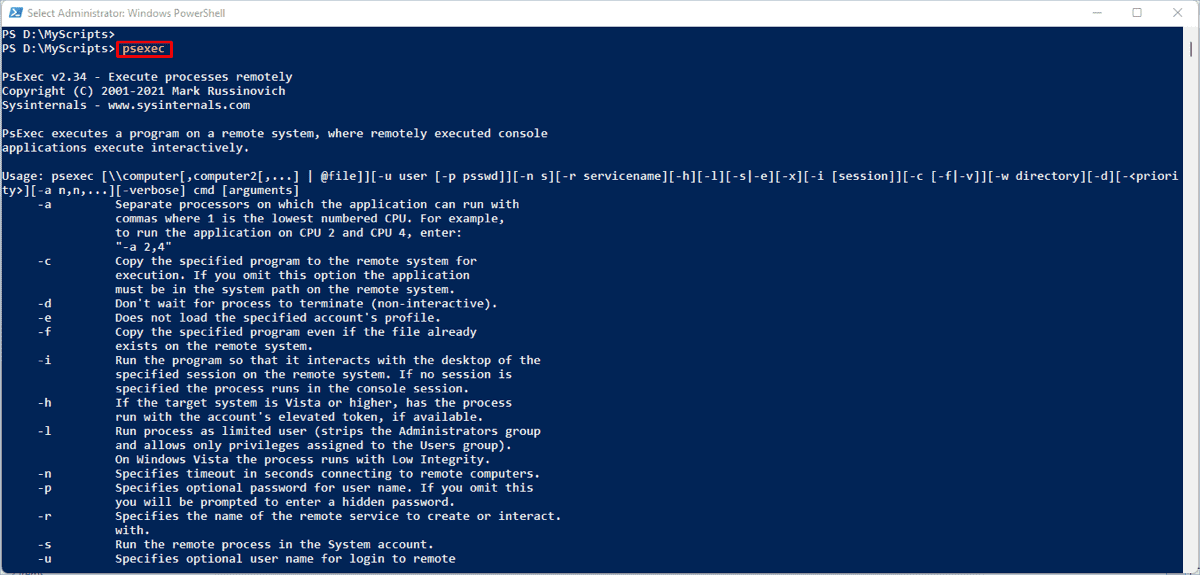
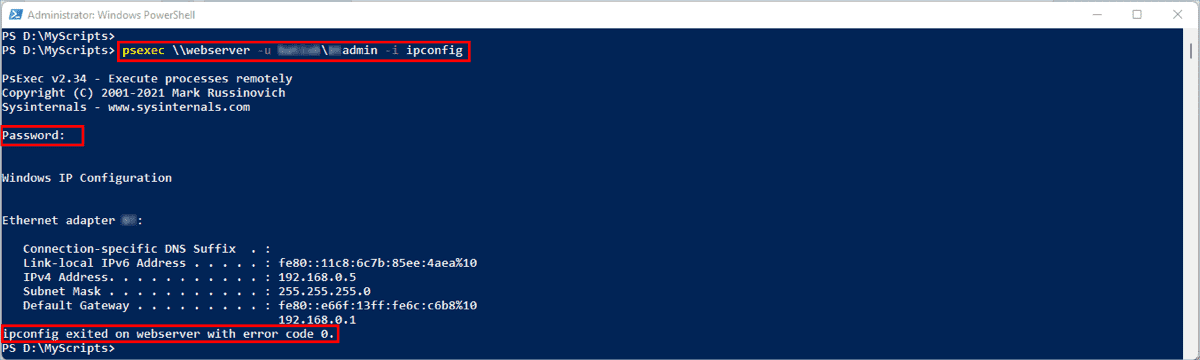

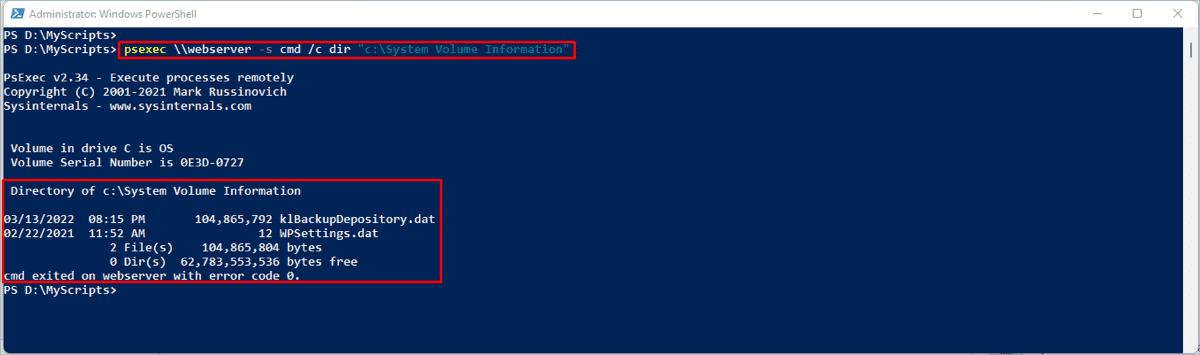
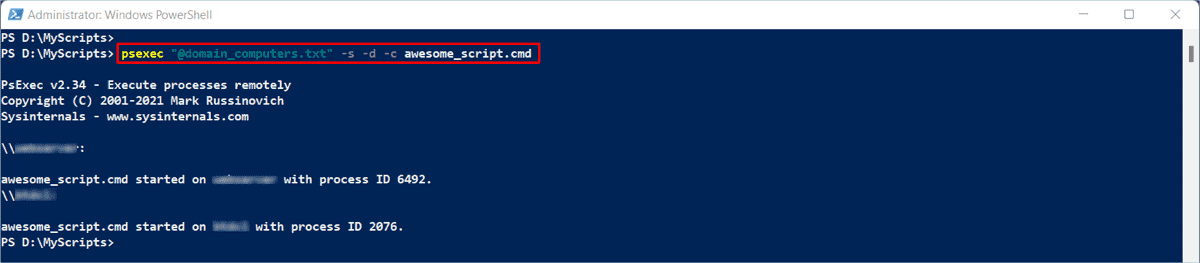
Click any screenshot to view full size
Getting Started with PsExec
Download the PsTools ZIP, extract PsExec, configure your network, and run your first remote command in under ten minutes.
Downloading PsExec
Head to our download section above to grab the PsTools suite. PsExec ships as part of PsTools, a collection of command-line utilities from Microsoft Sysinternals. The full PsTools ZIP weighs about 5 MB and contains PsExec alongside other useful tools like PsList, PsKill, and PsService.
Inside the ZIP you will find two versions of PsExec: PsExec.exe (32-bit, around 734 KB) and PsExec64.exe (64-bit). If you are on a modern 64-bit Windows 10 or 11 system, use PsExec64.exe for best performance and memory handling. The 32-bit version still works fine on 64-bit Windows through WOW64, but the native 64-bit build is the better choice.
There is no installer to deal with. PsExec is a standalone portable executable. You download the ZIP, extract it, and the tool is ready. No setup wizards, no registry entries, no background services. Toss it on a USB drive or drop it in your admin toolkit folder and move on.
You can also install PsExec through Windows Package Manager if you prefer: winget install Microsoft.Sysinternals.PsExec. This puts the binary on your PATH automatically.
Installation and PATH Setup
PsExec does not have a traditional installer. The entire setup is: extract and place. After downloading the PsTools ZIP from our download section, right-click the file and select Extract All. Pick a permanent location for the extracted files.
For easiest use, copy PsExec64.exe (or PsExec.exe on 32-bit systems) to a directory already in your system PATH. The simplest option is C:WindowsSystem32. Alternatively, create a dedicated folder like C:ToolsSysinternals and add it to your PATH:
- Press Win + R, type
sysdm.cpl, and hit Enter. - Click the Advanced tab, then Environment Variables.
- Under System variables, find
Path, click Edit. - Click New and add
C:ToolsSysinternals. - Click OK on all dialogs to save.
To verify the setup, open a Command Prompt as Administrator (right-click cmd.exe, choose “Run as administrator”) and type:
PsExec v2.43 – Execute processes remotely
Copyright (C) 2001-2023 Mark Russinovich
Sysinternals – www.sysinternals.com
Usage: psexec [computer[,computer2[,…]]] [options] command [arguments]
If you see the version and usage info, PsExec is ready. On first run, PsExec displays a license agreement dialog. Click Agree to accept it, or add the -accepteula flag to any command to skip it in scripts.
Windows SmartScreen or your antivirus may flag PsExec as a “remote admin tool.” This is a false positive caused by the fact that attackers sometimes misuse PsExec for lateral movement. The official download from Microsoft Sysinternals is safe. You may need to whitelist it in your AV.
Network Prerequisites and Configuration
PsExec connects to remote machines over SMB (Server Message Block), so your network needs to allow that traffic. Before trying your first remote command, check these requirements on each target machine:
- Admin access: Your account must be in the local Administrators group on the remote machine. Domain admin accounts work by default. For workgroup machines, use the
-uand-pflags to supply credentials. - File and Printer Sharing: The Server service must be running. Open
services.mscon the target and confirm “Server” is set to Automatic. - ADMIN$ share: PsExec copies a small service binary (
psexesvc.exe) totargetADMIN$System32. This admin share must be accessible. It is enabled by default on most Windows installations. - Firewall ports: Open TCP port 445 and UDP port 137 on the target. On Windows Firewall, enable the “File and Printer Sharing” rule or create a custom rule for these ports.
You can test connectivity before running PsExec by checking the admin share directly:
If you see a file listing, PsExec will work on this machine.
For security, restrict which machines can reach TCP 445 using firewall rules with -RemoteAddress scope. Allow connections only from your admin workstation or jump box, not from the entire network.
Your First Remote Commands
PsExec is on your PATH, the network is open. Time to actually use it. Open an elevated Command Prompt and follow along. The basic syntax looks like this:
Example 1: Check the hostname of a remote machine
server01
hostname exited on server01 with error code 0.
The command ran on server01 and returned its name. Error code 0 means success.
Example 2: Open an interactive remote command prompt
# You now have a live command prompt running on server01
Microsoft Windows [Version 10.0.19045]
C:Windowssystem32> ipconfig /all
This gives you a fully interactive command prompt on the remote machine. Type exit to disconnect.
Example 3: Run a command on multiple machines at once
# Or use a text file with one hostname per line:
C:> psexec @servers.txt ipconfig /all
Example 4: Run as SYSTEM account for elevated access
# Opens a local CMD running as NT AUTHORITYSYSTEM
# Useful for accessing HKLMSAM, locked files, etc.
Here are the flags you will use most often:
| Flag | What it does |
|---|---|
-s | Run as the SYSTEM account (highest privileges) |
-i | Run interactively on the remote desktop (visible to logged-in user) |
-d | Don’t wait for the process to finish (fire and forget) |
-c | Copy a local program to the remote machine before running it |
-u / -p | Specify username and password for authentication |
-h | Run with elevated token on Vista/Windows 7+ (admin UAC bypass) |
-n seconds | Connection timeout – give up after this many seconds |
-l | Run as limited user (strips admin privileges from the token) |
-nobanner | Suppress the startup banner for cleaner script output |
@file | Read computer names from a text file (one per line) |
Tips, Tricks, and Best Practices
Chain multiple commands in one call. Wrap them with cmd /c and use && to run them in sequence:
Install software remotely. Use -c to copy an installer and run it silently:
Common mistakes beginners make:
- Forgetting to run Command Prompt as Administrator. PsExec needs admin rights to create the temporary service on the remote machine.
- Not accepting the EULA on first run. Add
-accepteulato all script-based commands so they don’t hang waiting for a dialog click. - Using PsExec without specifying the path to a non-system executable. If the program is not in the remote system’s PATH, use the full path (like
C:Program FilesAppapp.exe) or pass-cto copy it from your local machine. - Leaving TCP 445 open to the entire network. Always scope your firewall rules to specific admin machines.
Power-user features worth knowing:
- Use
psexec * cmdwith a wildcard to target all machines in the current domain (use carefully). - Combine
-s -i -dto launch a SYSTEM-level GUI app on a remote desktop without waiting for it to close. - PsExec works locally too. Run
psexec -s cmdon your own machine to get a SYSTEM shell for troubleshooting permission issues.
Where to find help: The official Microsoft Sysinternals documentation covers every flag and edge case. The r/sysadmin subreddit has years of PsExec troubleshooting threads. Mark Russinovich’s blog on Microsoft Learn occasionally covers updates to the Sysinternals tools.
PsExec is part of the PsTools suite. Check out PsKill for remotely terminating processes, PsList for remote process listing, and PsInfo for collecting remote system information. They all follow the same syntax patterns.
Need the latest PsExec v2.43? Download PsExec from our download section above.
Frequently Asked Questions
Answers to common questions about downloading, installing, and using PsExec for remote Windows administration.
Is PsExec safe to download and use?
Yes, PsExec is safe to download and use. It is an official Microsoft tool developed by Mark Russinovich as part of the Sysinternals suite, which Microsoft acquired and continues to maintain. The current version (v2.43, released April 2023) is distributed directly through Microsoft Learn and has been trusted by IT administrators worldwide for over two decades.
PsExec is digitally signed by Microsoft, and the standalone executable is roughly 734 KB in size. Some antivirus programs may flag PsExec as a “potentially unwanted application” or “remote admin tool” because attackers have been known to misuse it for lateral movement during security incidents. This does not mean PsExec itself is malicious. The tool is cataloged in MITRE ATT&CK (ID: S0029) as a legitimate admin utility, not as malware. If your antivirus flags it, you can add an exclusion specifically for the Microsoft-signed PsExec.exe or PsExec64.exe binary.
- Download only from the official Microsoft Sysinternals page on Microsoft Learn
- Verify the digital signature by right-clicking the .exe, selecting Properties, then Digital Signatures
- Avoid third-party download mirrors that may bundle modified or outdated versions
- Keep your copy up to date by checking the official page periodically
Pro tip: If your organization uses endpoint detection tools like CrowdStrike or Defender for Endpoint, whitelist PsExec by hash rather than by filename to prevent abuse while still allowing legitimate admin use.
For more about what PsExec does and why sysadmins rely on it, see our overview section.
Where is the official safe download for PsExec?
The only official source for PsExec is the Microsoft Sysinternals page on Microsoft Learn, hosted at learn.microsoft.com/en-us/sysinternals/downloads/psexec. This is the same page maintained by Mark Russinovich and the Sysinternals team since Microsoft acquired the project.
PsExec is available as a standalone download or as part of the full PsTools suite (approximately 5 MB zipped). The complete Sysinternals Suite, which includes dozens of other utilities like Process Explorer and Autoruns, weighs about 168.7 MB. All downloads from Microsoft Learn are digitally signed and verified. Sites like MajorGeeks and Softpedia also host copies, but the safest route is always the Microsoft source directly.
- Visit the official PsExec page on Microsoft Learn
- Click “Download PsTools” to get the suite, or download PsExec individually
- Extract the ZIP file to a folder like
C:ToolsPsTools - Optionally add that folder to your system PATH for command-line access from any directory
Pro tip: You can also download PsExec directly from the command line using curl -LO https://download.sysinternals.com/files/PSTools.zip and extract with PowerShell’s Expand-Archive cmdlet.
Head to our download section for direct links and version details.
Is PsExec a virus or malware?
No, PsExec is not a virus or malware. It is a legitimate system administration tool published by Microsoft. However, PsExec frequently triggers antivirus detections because threat actors have historically used it during ransomware attacks and lateral movement inside compromised networks.
The distinction matters: PsExec itself performs no malicious actions. It creates a temporary Windows service (PSEXESVC) on the target machine, executes your command, and removes the service when done. Since version 2.20, all communications between the local and remote machines are encrypted. The MITRE ATT&CK framework lists PsExec as a “tool” used by both administrators and adversaries, alongside other dual-use utilities. Security vendors like CrowdStrike and SentinelOne may block unsigned or renamed copies but typically allow the original Microsoft-signed binary when properly configured.
- Windows Defender SmartScreen may warn on first run — click “More info” then “Run anyway”
- CrowdStrike Falcon may flag it under “remote admin” policy — create a hash-based exclusion
- If you get a false positive, verify the file’s digital signature reads “Microsoft Corporation”
- Renamed copies of PsExec (like
p.exeorexec.exe) will almost always be blocked by EDR tools
Pro tip: Run sigcheck -v PsExec64.exe (another Sysinternals tool) to verify both the digital signature and VirusTotal detection ratio before deploying PsExec across your network.
Learn about PsExec’s security features in our features section.
Does PsExec work on Windows 11?
Yes, PsExec works on Windows 11 including the latest 24H2 update. Version 2.43 officially supports Windows 8.1 and later client operating systems, as well as Windows Server 2012 and above. Both the 32-bit (PsExec.exe) and 64-bit (PsExec64.exe) binaries function correctly on Windows 11.
Some users on Windows 11 Pro and Enterprise have reported longer initial connection times compared to Windows 10, primarily due to stricter default firewall rules and SMB signing enforcement. Windows 11 22H2 and later versions also enforce certain security policies more aggressively, which can occasionally block PsExec connections if LocalAccountTokenFilterPolicy is not set. The tool requires access to the Admin$ share (port TCP 445) and sometimes the Remote Registry service depending on your specific use case.
- Make sure you are running PsExec v2.43 (the latest release as of April 2023)
- Open an elevated Command Prompt or PowerShell window (Run as Administrator)
- On the target Windows 11 machine, verify the Admin$ share is accessible:
dir targetadmin$ - If connections fail, set the registry value
LocalAccountTokenFilterPolicyto1underHKLMSOFTWAREMicrosoftWindowsCurrentVersionPoliciessystem - Ensure TCP port 445 is open in Windows Firewall on the target machine
Pro tip: On Windows 11 machines joined to Azure AD (Entra ID), use the -u [email protected] syntax or connect via IP address with explicit credentials using -u and -p flags.
Check our system requirements for full compatibility details across all Windows versions.
Does PsExec work on macOS or Linux?
PsExec is a Windows-only tool and does not run natively on macOS or Linux. It relies on Windows-specific features like SMB file sharing, the Windows Service Control Manager, and named pipes, none of which exist on non-Windows operating systems.
If you need PsExec-like functionality on macOS or Linux, there are several alternatives. The open-source Impacket library (Python-based) includes psexec.py, which replicates much of PsExec’s behavior by connecting to remote Windows machines over SMB from a Linux or macOS host. This is commonly used in penetration testing and cross-platform administration. For general remote command execution on Unix systems, SSH is the standard tool. PowerShell 7+ also supports SSH-based remoting across Windows, macOS, and Linux using Enter-PSSession or Invoke-Command with the -SSHTransport parameter.
- Linux/macOS to Windows: Use Impacket’s
psexec.pyorsmbexec.pyfor SMB-based remote execution - Cross-platform PowerShell: Install PowerShell 7 on macOS/Linux and use SSH remoting to reach Windows targets
- Linux to Linux: Use SSH directly — it handles everything PsExec does and more
- Windows Subsystem for Linux: WSL cannot run the native PsExec binary, but you can invoke it from the Windows side via
/mnt/c/Tools/PsExec64.exe
Pro tip: If you manage a mixed-OS environment, consider setting up PowerShell 7 SSH remoting on all machines. It gives you a single tool for remote management across Windows, macOS, and Linux without needing separate utilities.
See our features section for the full list of what PsExec supports on Windows.
What are the system requirements for PsExec?
PsExec has minimal system requirements. It runs on any Windows system from Windows 7 through Windows 11, and on Windows Server 2008 R2 and later. The executable itself is roughly 734 KB for the 64-bit version, so storage and memory requirements are negligible.
The real requirements involve network configuration rather than hardware. PsExec communicates over SMB (TCP port 445), so both the source and target machines need that port accessible. The user running PsExec must have administrative privileges on the target machine. File and Printer Sharing must be enabled, and the Admin$ administrative share must be accessible. On domain-joined machines, these are typically enabled by default. On workgroup machines or standalone PCs, you may need to manually enable them and set the LocalAccountTokenFilterPolicy registry value.
- OS: Windows 7/8/8.1/10/11 or Windows Server 2008 R2 through 2022
- CPU: Any x86 or x64 processor (both 32-bit and 64-bit binaries included)
- RAM: Under 10 MB during execution
- Disk: 734 KB for PsExec64.exe alone, approximately 5 MB for the full PsTools suite ZIP
- Network: TCP port 445 open between source and target, Admin$ share accessible
Pro tip: If TCP 445 is blocked by corporate firewall rules between subnets, ask your network team to open it specifically for your admin workstation’s IP rather than broadly — this keeps the attack surface small while letting PsExec function.
See our system requirements table for a detailed breakdown.
Is PsExec completely free to download and use?
Yes, PsExec is completely free. There is no paid version, no premium tier, and no licensing fee. It is distributed as freeware under the Microsoft Sysinternals license terms, which allow both personal and commercial use at no cost.
The Sysinternals license requires you to accept a EULA (End User License Agreement) on first run. You can either click “Agree” in the dialog box or suppress it permanently by using the -accepteula flag in your command. This is a one-time acceptance per user profile. The license permits redistribution within your organization but does not allow modifying the binary. Microsoft has maintained the freeware model for all Sysinternals tools since acquiring the suite from Winternals Software in 2006, and there has been no indication of any future pricing changes.
- No registration or account required to download
- No feature limitations — the full tool is available to everyone
- No time-based trial — PsExec works indefinitely
- Free for individual, enterprise, government, and educational use
- Distributed alongside 70+ other free Sysinternals utilities
Pro tip: For enterprise deployments, use psexec -accepteula in your scripts to automatically accept the EULA across all target machines. You can also pre-accept it by creating the registry key HKCUSoftwareSysinternalsPsExec with a EulaAccepted DWORD value set to 1.
Grab the latest version from our download section.
Does PsExec require a Microsoft account or subscription?
No, PsExec does not require a Microsoft account, Azure subscription, Microsoft 365 license, or any other form of registration. You can download and run it immediately without signing in to anything.
Unlike many modern Microsoft tools that tie into Azure Active Directory or Microsoft 365, PsExec is a standalone portable executable. It does not phone home, does not collect telemetry, and does not require internet access to function. The tool works entirely within your local network using Windows authentication (NTLM or Kerberos) that is already built into the operating system. Even the download page on Microsoft Learn does not require sign-in. The only prerequisite is having Windows administrative credentials on the machines you want to manage.
- No Microsoft account needed for download or usage
- No internet connection required for operation (works on air-gapped networks)
- Authentication uses existing Windows domain or local credentials
- No telemetry or data collection of any kind
Pro tip: PsExec works with Kerberos authentication on domain-joined machines automatically. For workgroup machines, pass credentials explicitly with -u domainuser -p password or leave off -p to get a secure password prompt.
Learn more about PsExec’s capabilities in our features section.
How do I download and install PsExec step by step?
PsExec does not have a traditional installer. It is a portable executable that you download, extract, and run directly from any folder. The entire setup takes under two minutes.
The PsTools suite download is a single ZIP file of approximately 5 MB that contains PsExec along with other PsTools utilities like PsList, PsKill, PsInfo, and PsService. You get both the 32-bit (PsExec.exe, roughly 530 KB) and 64-bit (PsExec64.exe, roughly 734 KB) binaries in the same archive. On modern 64-bit Windows systems, use PsExec64.exe for best compatibility. The archive also includes Eula.txt covering the Sysinternals license terms.
- Download the PsTools ZIP from our download section
- Right-click the ZIP file, select “Extract All,” and choose a destination folder (for example
C:ToolsPsTools) - Open an elevated Command Prompt: press Win+X and select “Terminal (Admin)” or “Command Prompt (Admin)”
- Navigate to the folder:
cd C:ToolsPsTools - Run your first command:
PsExec64.exe -accepteula target-pc cmd - Optionally, add
C:ToolsPsToolsto your system PATH so you can call PsExec from any directory
Pro tip: Add PsTools to your system PATH permanently by running setx PATH "%PATH%;C:ToolsPsTools" /M from an elevated prompt. After that, just type psexec64 from anywhere.
For a detailed walkthrough with screenshots and tips, see our Getting Started guide.
How to fix PsExec “Access is Denied” errors?
“Access is Denied” is the most common PsExec error, and it almost always comes down to permissions or network configuration on the target machine rather than a problem with PsExec itself.
This error typically appears when the user account lacks administrative privileges on the remote machine, when UAC (User Account Control) is filtering the admin token for remote connections, or when the Admin$ share is inaccessible. Windows Vista and later introduced a security feature called “remote UAC” that strips administrative privileges from network logons for local accounts. This means even if you use a local admin account, PsExec connections may fail unless you specifically configure the target machine to allow full remote admin tokens.
- Verify you are running the local Command Prompt or PowerShell as Administrator
- Test basic connectivity first:
dir targetadmin$— if this fails, PsExec will fail too - On the target, set
LocalAccountTokenFilterPolicyto 1:REG ADD HKLMSOFTWAREMicrosoftWindowsCurrentVersionPoliciessystem /v LocalAccountTokenFilterPolicy /t REG_DWORD /d 1 /f - Clear any stale connections:
net use targetipc$ /deletethen reconnect - Use the
-hflag to request an elevated token:psexec64 -h target cmd - If using a domain account, make sure the account is a member of the local Administrators group on the target
Pro tip: On workgroup (non-domain) machines, try connecting with explicit credentials: psexec64 target -u targetAdministrator -p password cmd. Leaving out the machine prefix from the username is a common mistake that causes silent authentication failures.
Our Getting Started guide covers network setup in detail.
PsExec portable vs PsTools suite — which should I download?
PsExec is always portable. There is no installer version. The choice is between downloading PsExec as a standalone pair of files or getting the full PsTools suite, which bundles PsExec with 11 other command-line utilities.
The individual PsExec download gives you just PsExec.exe and PsExec64.exe, totaling about 1.2 MB. The full PsTools suite is roughly 5 MB and adds utilities like PsInfo (system information), PsList (process listing), PsKill (process termination), PsService (service management), PsLoggedOn (logged-in user detection), PsPasswd (password changes), and others. All of these work the same way as PsExec — portable, no installation, just extract and run.
- Download PsExec alone if you only need remote command execution and want to minimize your footprint
- Download PsTools suite if you do general remote administration and want process management, service control, and system info tools alongside PsExec
- Download full Sysinternals Suite (168.7 MB) if you want all 70+ tools including Process Explorer, Process Monitor, Autoruns, and more
- All three options are portable — just extract to a folder and run
Pro tip: You can access PsExec without downloading anything by using the Sysinternals Live service: run live.sysinternals.comtoolsPsExec64.exe directly from a UNC path. This always gives you the latest version but requires internet access on the machine.
See our download section for all available packages.
How to fix PsExec not connecting or timing out?
PsExec connection timeouts are almost always caused by network-level blocks, firewall rules, or the target machine being unreachable on port TCP 445. The tool does not use HTTP or HTTPS — it relies entirely on SMB (Server Message Block) protocol.
Before blaming PsExec, confirm basic network connectivity. A successful ping does not guarantee PsExec will work because ICMP and SMB use different ports. Windows Firewall on the target may allow ping (ICMP) while blocking port 445. Windows 11 and recent Windows 10 builds have also tightened SMB security defaults, including mandatory SMB signing and stricter firewall profiles, which can cause PsExec to stall or timeout without a clear error message.
- Test SMB connectivity directly:
Test-NetConnection -ComputerName target -Port 445in PowerShell - On the target, enable File and Printer Sharing in Windows Firewall:
netsh advfirewall firewall set rule group="File and Printer Sharing" new enable=yes - Check if the Remote Registry service is running (some PsExec operations need it):
sc target query RemoteRegistry - Use the PsExec
-nflag to set a timeout:psexec64 -n 30 target cmdgives 30 seconds before aborting - Try connecting by IP address instead of hostname to rule out DNS issues
Pro tip: If PsExec connects but hangs after “Starting PSEXESVC service,” the target likely has a leftover PSEXESVC service from a previous interrupted session. Run sc target delete PSEXESVC to clean it up, or reboot the target machine.
Our Getting Started guide walks through network configuration step by step.
Why does PsExec show “The handle is invalid” or pipe errors?
“The handle is invalid” and “No process is on the other end of the pipe” errors occur when the PSEXESVC service on the target machine crashes, gets stuck, or fails to start properly. These errors are more common after interrupted PsExec sessions or when running multiple PsExec commands to the same target in quick succession.
PsExec works by copying a small service binary (PSEXESVC.exe, about 28 KB) to the target machine’s %WINDIR% folder, starting it as a Windows service, communicating through named pipes, running your command, and then cleaning up. If any step in that chain breaks — especially the pipe communication — you get these cryptic errors. A common cause on Reddit sysadmin forums is antivirus or EDR software intercepting the service creation, which prevents the pipe from being established.
- Check for leftover service artifacts:
sc target query PSEXESVC - If the service exists, stop and delete it:
sc target stop PSEXESVCthensc target delete PSEXESVC - Delete any leftover file:
del targetadmin$PSEXESVC.exe - Wait 10 seconds, then retry your PsExec command
- If the error persists, reboot the target machine to clear all stale handles
Pro tip: When scripting PsExec commands in a loop against many machines, add the -d (detach) flag and a brief delay between connections. Running too many concurrent PsExec sessions to the same target often triggers pipe errors.
See our features section for details on how PsExec manages remote connections.
PsExec stopped working after a Windows update — how to fix?
Windows updates occasionally break PsExec connectivity by tightening security defaults, modifying firewall rules, or resetting registry values. This has been reported after several cumulative updates in 2023 and 2024 for both Windows 10 and Windows 11.
The most common post-update breakages involve SMB signing enforcement changes, UAC policy resets, and Windows Firewall rule modifications. Microsoft has progressively hardened SMB security across recent updates, and some patches re-enable or enforce SMB signing requirements that were previously disabled. If PsExec worked before an update and stopped immediately after, the update likely changed a security policy that PsExec depends on.
- Re-check
LocalAccountTokenFilterPolicy— some updates reset it:REG QUERY HKLMSOFTWAREMicrosoftWindowsCurrentVersionPoliciessystem /v LocalAccountTokenFilterPolicy - Verify File and Printer Sharing firewall rules are still enabled
- Check if the Admin$ share is still accessible:
net view target - Ensure the Server and Workstation services are running on the target:
sc query LanmanServerandsc query LanmanWorkstation - If SMB signing is now required, ensure both machines have matching SMB signing settings
Pro tip: Create a Group Policy Object (GPO) that locks in your PsExec-required settings (firewall rules, LocalAccountTokenFilterPolicy, Admin$ share) so Windows updates cannot silently override them.
Review the system requirements to confirm your environment meets all prerequisites.
How to update PsExec to the latest version?
PsExec does not have a built-in auto-update mechanism. To update, download the latest version from the official Microsoft Sysinternals page and replace your existing files. The current version is v2.43, released on April 11, 2023.
Since PsExec is a standalone portable executable with no installer or registry entries, updating is as simple as downloading the new ZIP, extracting it, and overwriting the old PsExec.exe and PsExec64.exe files. You can check your current version by running PsExec64.exe -nobanner or just PsExec64.exe — the version number displays in the banner header. There is no changelog page for individual PsExec releases, but the Sysinternals blog and the Microsoft Learn page note major changes.
- Check your current version: run
PsExec64.exeand note the version in the header - Visit the official PsExec page on Microsoft Learn to see the latest version listed
- Download the updated PsTools ZIP file
- Extract and overwrite your existing files in
C:ToolsPsTools(or wherever you store them) - Verify: run
PsExec64.exeagain and confirm the new version number
Pro tip: Use the Sysinternals Live UNC path live.sysinternals.comtoolsPsExec64.exe to always run the latest version without manual downloads. You can create a batch file that copies from this path to your local tools folder on a schedule.
Get the latest release from our download section.
PsExec vs PowerShell Remoting — which is better for remote administration?
Both tools handle remote command execution, but they work differently and suit different scenarios. PsExec uses SMB (port 445) and requires no pre-configuration on the target beyond standard admin shares. PowerShell Remoting uses WinRM (ports 5985/5986) and needs Enable-PSRemoting run on each target machine first.
PsExec excels at quick, one-off commands where you do not want to configure anything on the remote end. It can run commands as the SYSTEM account (-s flag), copy executables to the remote machine (-c flag), and target multiple machines at once using @file.txt syntax. PowerShell Remoting offers richer scripting capabilities, object-based output (not just text), persistent sessions with Enter-PSSession, and better integration with modern Windows management. PowerShell also uses encrypted WinRM transport by default, while PsExec’s encryption was added in version 2.20.
- Choose PsExec when: You need a fast one-off command, the target has no WinRM configured, you need SYSTEM-level access, or you are working with legacy Windows machines
- Choose PowerShell Remoting when: You are scripting complex automation, need structured output (objects instead of text), want persistent remote sessions, or manage many machines regularly
- Security consideration: PowerShell Remoting with Kerberos is generally considered more secure than PsExec for enterprise environments. PsExec has been flagged as a lateral movement tool by multiple EDR vendors
- Speed: PsExec has lower startup overhead for single commands. PowerShell sessions take longer to establish but are faster for running multiple commands in sequence
Pro tip: Many sysadmins keep both tools available. Use PsExec for quick fixes like restarting a service or checking a registry key, and PowerShell Remoting for ongoing automation scripts. They are complementary, not competing.
Read about PsExec’s remote execution capabilities in our features section.
How do I run a command as SYSTEM using PsExec?
Use the -s flag to run any command under the NT AUTHORITYSYSTEM account, which has the highest level of privilege on a Windows machine. The syntax is psexec64 -s cmd for a local SYSTEM shell or psexec64 -s target cmd for a remote one.
Running as SYSTEM is one of PsExec’s most used features among system administrators. The SYSTEM account can access resources that even local Administrator accounts cannot, including certain registry keys under HKLMSECURITY and HKLMSAM, and protected system files. This is particularly useful for troubleshooting service account issues, modifying protected registry hives, or testing how a service behaves under its native SYSTEM context. The -s flag can be combined with -i to get an interactive SYSTEM session on the remote desktop.
- Local SYSTEM cmd prompt:
psexec64 -s -i cmd(the-imakes it interactive on your desktop) - Remote SYSTEM cmd:
psexec64 -s target cmd - Run a script as SYSTEM:
psexec64 -s target powershell -File C:Scriptsrepair.ps1 - Launch regedit as SYSTEM to view protected keys:
psexec64 -s -i regedit - Combine with
-dfor background execution:psexec64 -s -d target msiexec /i package.msi /qn
Pro tip: If you need to test how a scheduled task runs, launch psexec64 -s -i cmd locally. This gives you a SYSTEM-level command prompt identical to what Task Scheduler uses, making it much easier to debug path or permission issues.
Explore all available flags in our Getting Started guide.
How do I use PsExec to run commands on multiple remote computers?
PsExec supports targeting multiple machines in a single command using the @file syntax or wildcard notation. This is one of its strongest features for batch administration across a network.
Create a plain text file listing one hostname or IP address per line (for example, C:computers.txt with entries like PC-001, PC-002, SERVER-01). Then reference it with the @ prefix. PsExec connects to each machine sequentially by default, runs the specified command, and shows the output from each host with the computer name prepended. For domain environments, you can also use * to target all machines in the current domain, though this is rarely practical on large networks.
- Create your computer list: one hostname per line in
C:computers.txt - Run a command on all listed machines:
psexec64 @C:computers.txt ipconfig /all - Copy and execute a script on each:
psexec64 -c @C:computers.txt C:Scriptspatch.bat - Use
-dto detach and run non-interactively:psexec64 -d @C:computers.txt shutdown /r /t 300 - Combine with credentials:
psexec64 -u domainadmin -p pass @C:computers.txt cmd /c hostname
Pro tip: Generate your computer list dynamically from Active Directory using PowerShell: Get-ADComputer -Filter * -SearchBase "OU=Workstations,DC=corp,DC=local" | Select -Expand Name | Out-File C:computers.txt. Pipe the output to PsExec for targeted deployments by OU.
For more batch operation patterns, see our Getting Started guide.
How to uninstall PsExec completely?
Since PsExec is a portable tool with no installer, uninstalling it is simply a matter of deleting the executable files. There are no registry entries, no Start Menu shortcuts, and no background services created by PsExec on your local machine.
PsExec does leave two small traces that you may want to clean up. First, it stores the EULA acceptance in the registry at HKCUSoftwareSysinternalsPsExec with a EulaAccepted value. Second, on remote target machines where you have used PsExec, there may be a residual PSEXESVC.exe file in %WINDIR% if a session was interrupted. These files are harmless but can be cleaned up if needed.
- Delete the PsExec executables:
PsExec.exeandPsExec64.exefrom your tools folder - Optionally remove the EULA registry key:
REG DELETE HKCUSoftwareSysinternalsPsExec /f - If you added PsTools to your PATH, remove it from System Environment Variables
- On remote machines, check for leftover services:
sc target delete PSEXESVC - On remote machines, delete any residual file:
del targetadmin$PSEXESVC.exe
Pro tip: If you installed the full PsTools suite or Sysinternals Suite, each tool stores its own EULA key under HKCUSoftwareSysinternals. To remove all of them at once: REG DELETE HKCUSoftwareSysinternals /f.
For installation details, check our Getting Started guide.
Still have questions? Check our Getting Started guide or visit the official Microsoft Sysinternals documentation.